1. Add your first machine
Start by creating a record for each machine, vehicle, trailer or piece of equipment you want to track. Give it a clear name your team will recognise, then add any useful details such as registration, make, model, type and current reading.
- Use names that match how your team talks about the machine, such as "Unit 503", "Rogator 854" or "Isuzu NPR".
- Set the current meter reading when you create the machine. This helps Trakserv calculate future service work.
- Add notes for anything that does not fit the standard fields.
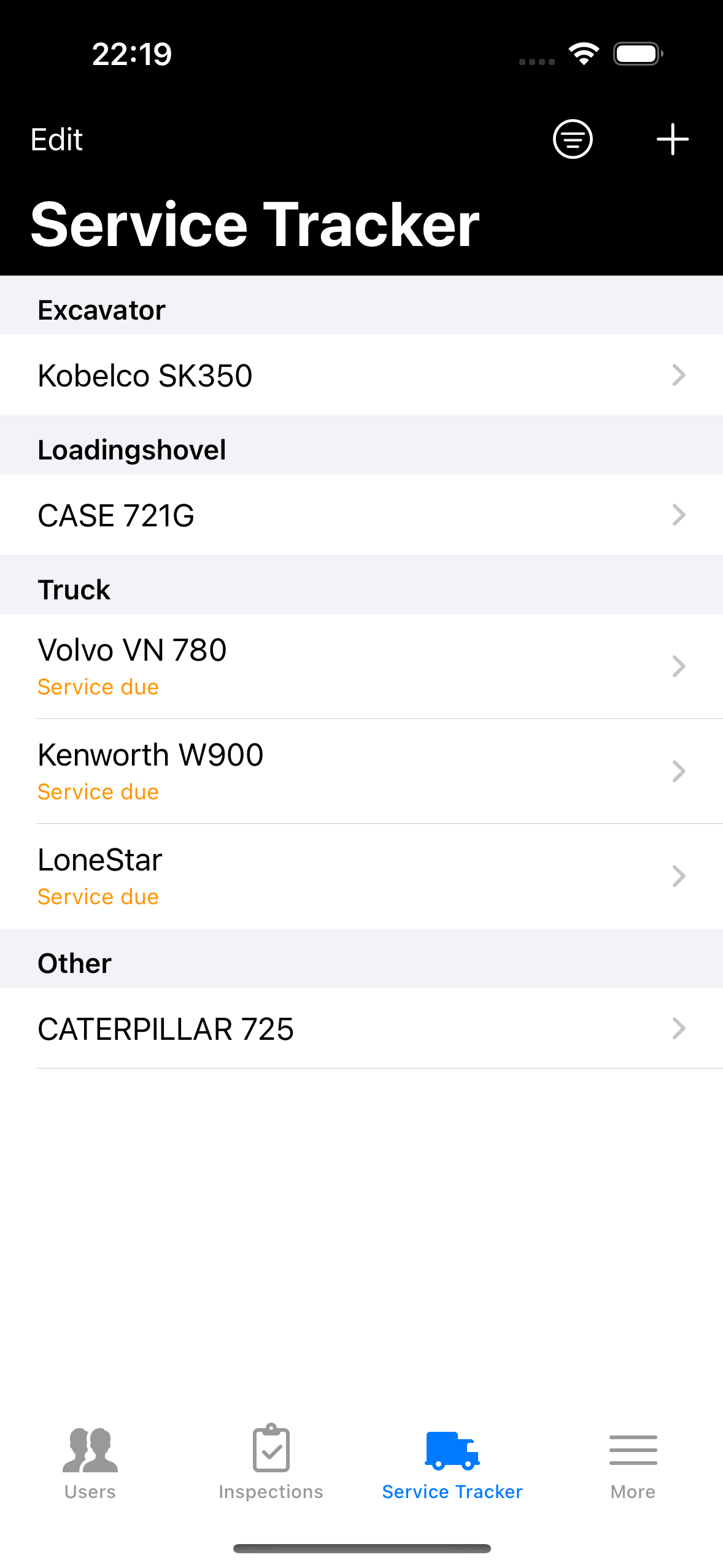
Example machine list with realistic tractors, sprayers, service trucks and excavators.
2. Choose the right service schedule
Trakserv can track service work by hours, miles, kilometres or date. Pick the metric that matches how the machine is actually maintained.
Common examples
Set the machine metric to Hours, enter the current engine hours, and set a service interval such as every 250 hours.
Use Miles or KM, enter the current odometer reading, and set the interval your workshop uses, such as every 10,000 miles.
Use a date-based service schedule for machines that get a full service once per year, even if they do not build up many hours or miles.
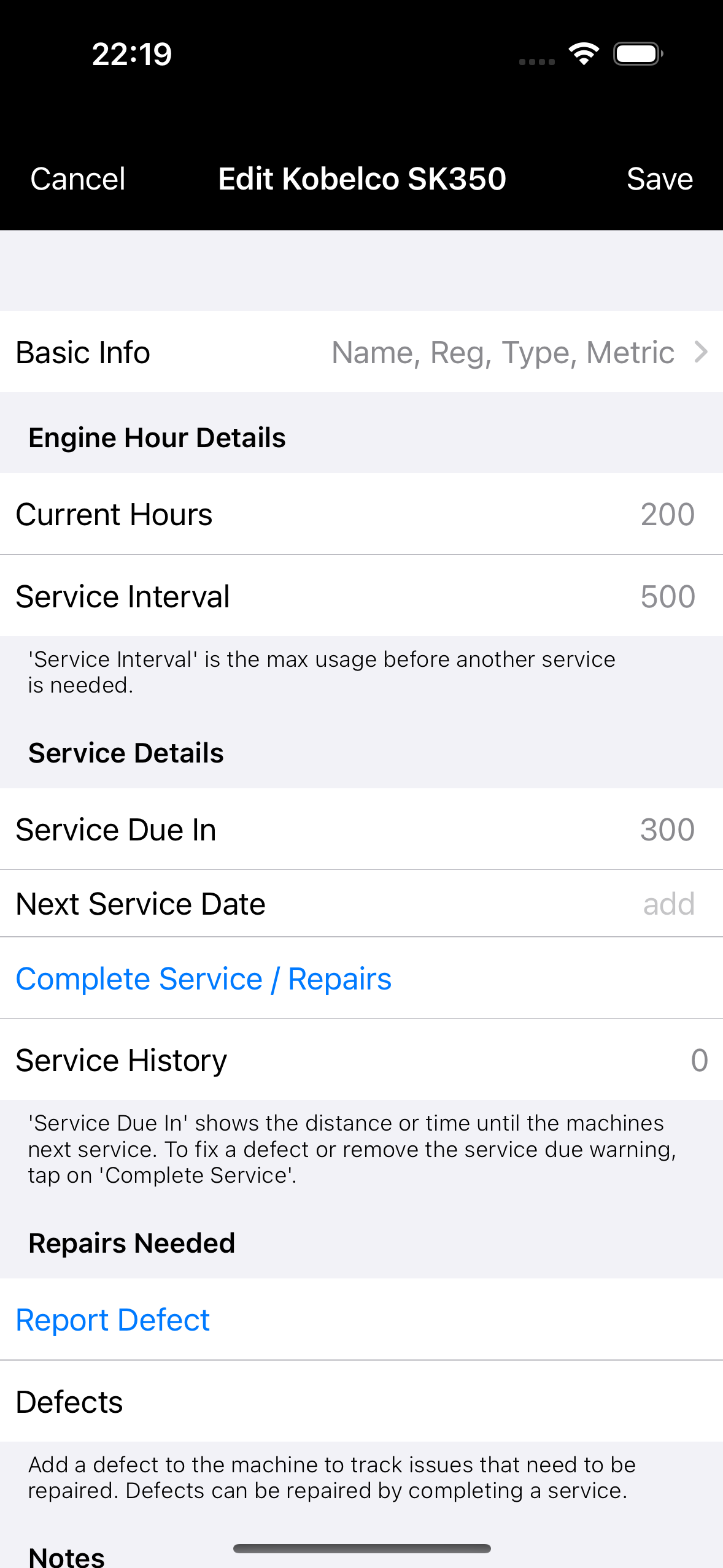
For engine-hour servicing, set the Service Metric to Hours and enter the current hours and service interval.
3. Log service history
When work is completed, add a service record to the machine. Include what was done, the reading at the time, the date, and any notes that will help you later.
- Open the machine.
- Go to its service history.
- Add the service details, reading and notes.
- Save the record so the history stays with that machine.
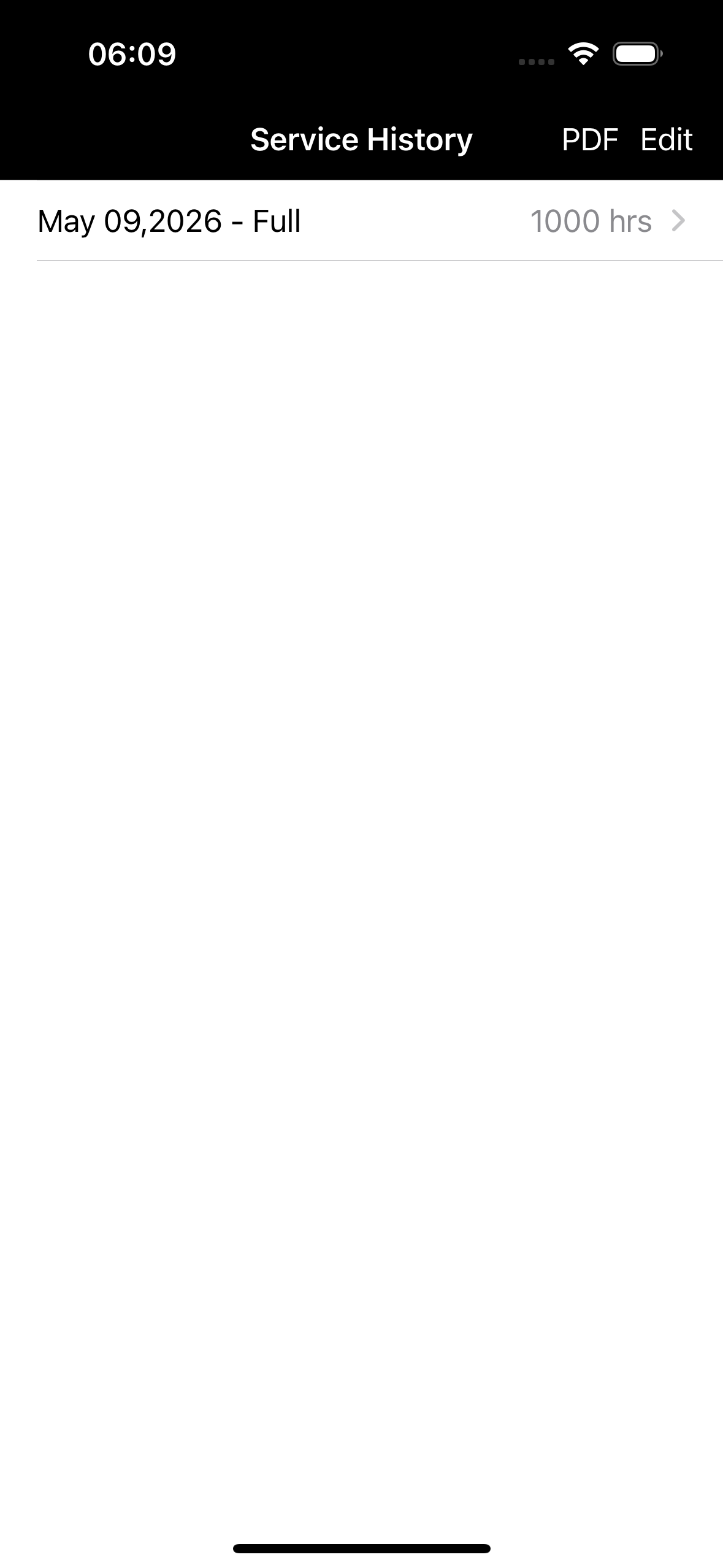
Completed services stay attached to the machine, including the date, reading and service type.
4. Generate service history PDF reports
Use the service history PDF when you need to share a machine's maintenance record with a customer, mechanic, manager, auditor or buyer.
- Open the machine.
- Go to Service History.
- Tap PDF.
- Preview the report, then use the share button to send or save it.
The Service History screen includes a PDF option for creating a shareable maintenance history report.
5. See what work is due
Once service intervals and history are recorded, Trakserv can help you see which machines are coming due or already due. Keeping readings up to date makes this more accurate.
- Update the machine reading when you know the latest hours, miles or kilometres.
- Log services as soon as they are completed.
- Use notes for extra reminders or workshop context.
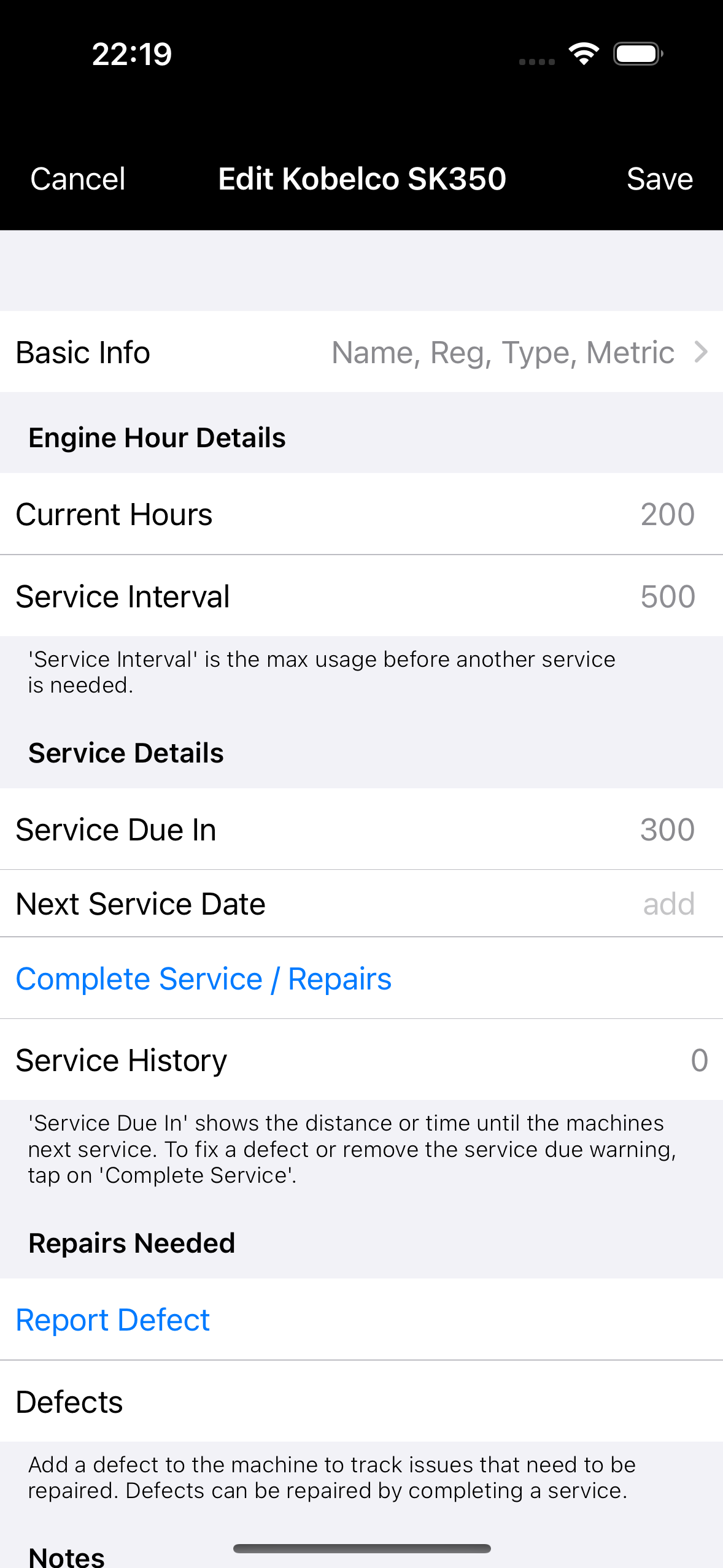
The machine detail screen shows service due information and links directly to complete service or service history.
6. Use inspections and defects
Service history is for work that has been completed. Inspections are for regular checks. Defects are for problems that need attention.
- Use inspections for daily or routine checks.
- Use defects when something is broken, unsafe or needs follow-up.
- Use service history when maintenance or repair work has been carried out.
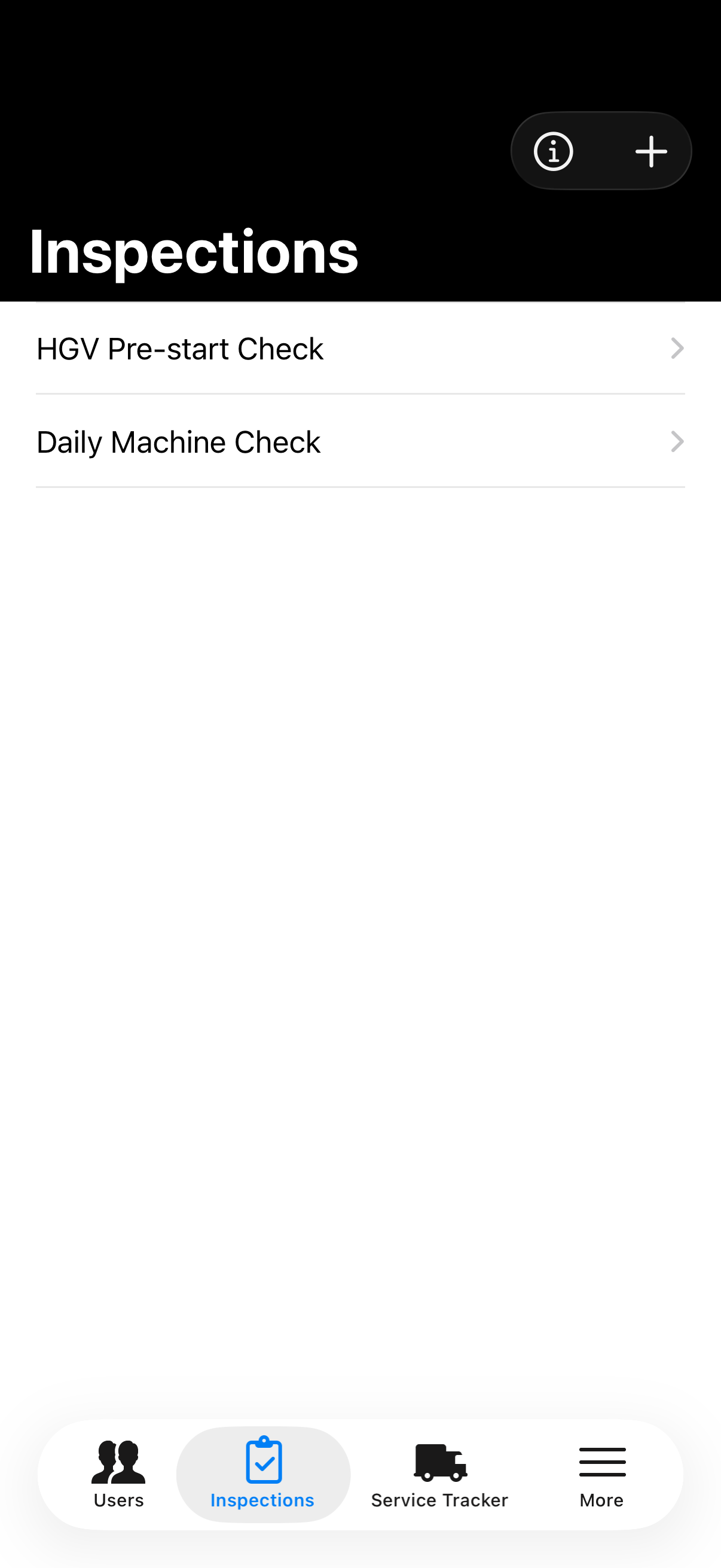
Choose an inspection template, such as a daily machine check.
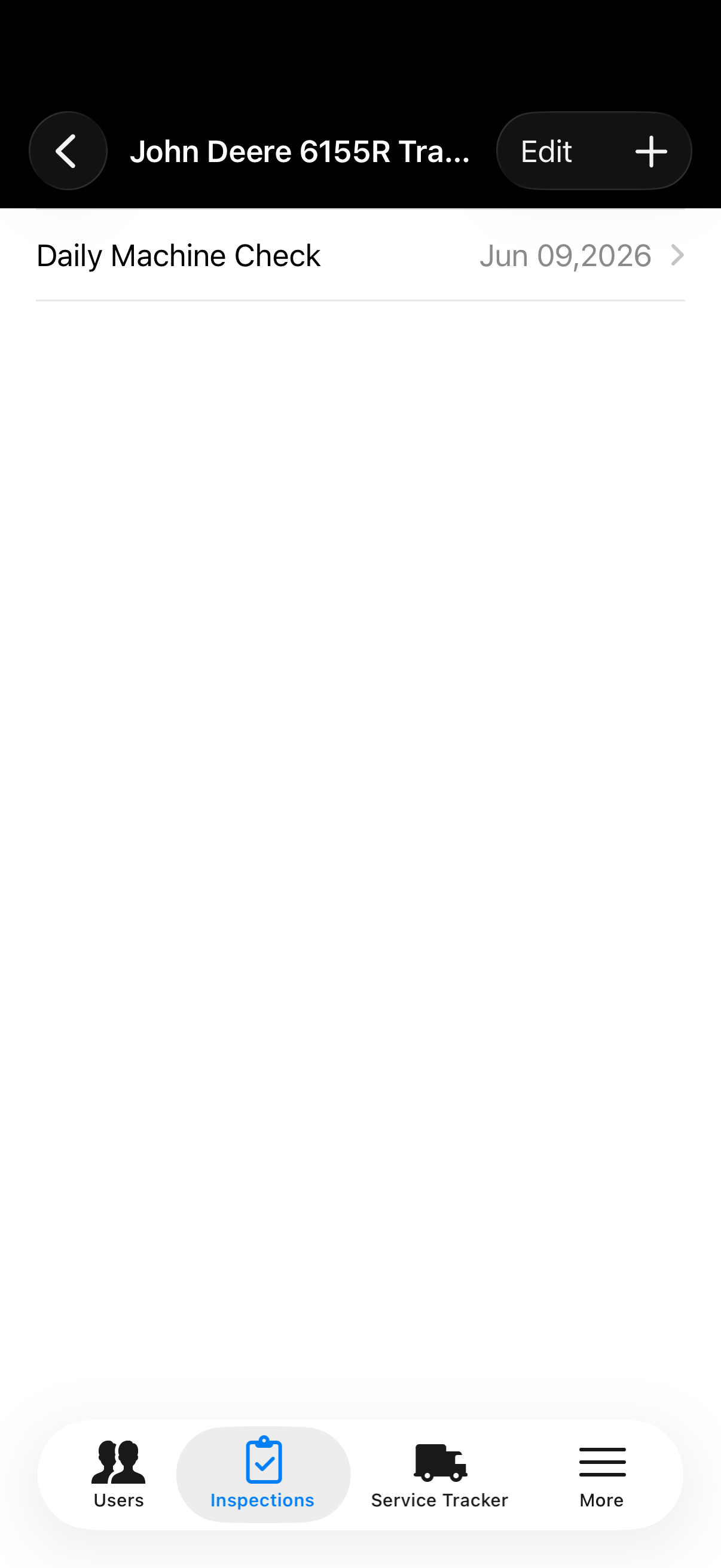
Saved inspection forms remain available against the selected machine.
7. Upload photos for defects
Photos help make defect reports clearer, especially when someone else needs to inspect, repair or approve the work later.
- Open the machine.
- Choose Report Defect, or open an existing defect.
- Tap Images.
- Take a photo or choose one from the photo library.
- Save the defect so the photo stays attached to that machine record.
From the machine detail screen, report a defect and attach photos to document the issue.
8. Invite your team
Company admins can invite other users so operators, drivers, mechanics and managers can all work from the same records.
- Invite people who need to update machines, record services or complete inspections.
- Keep admin access for people who should manage company settings and billing.
- Ask users to keep machine readings and service notes up to date.
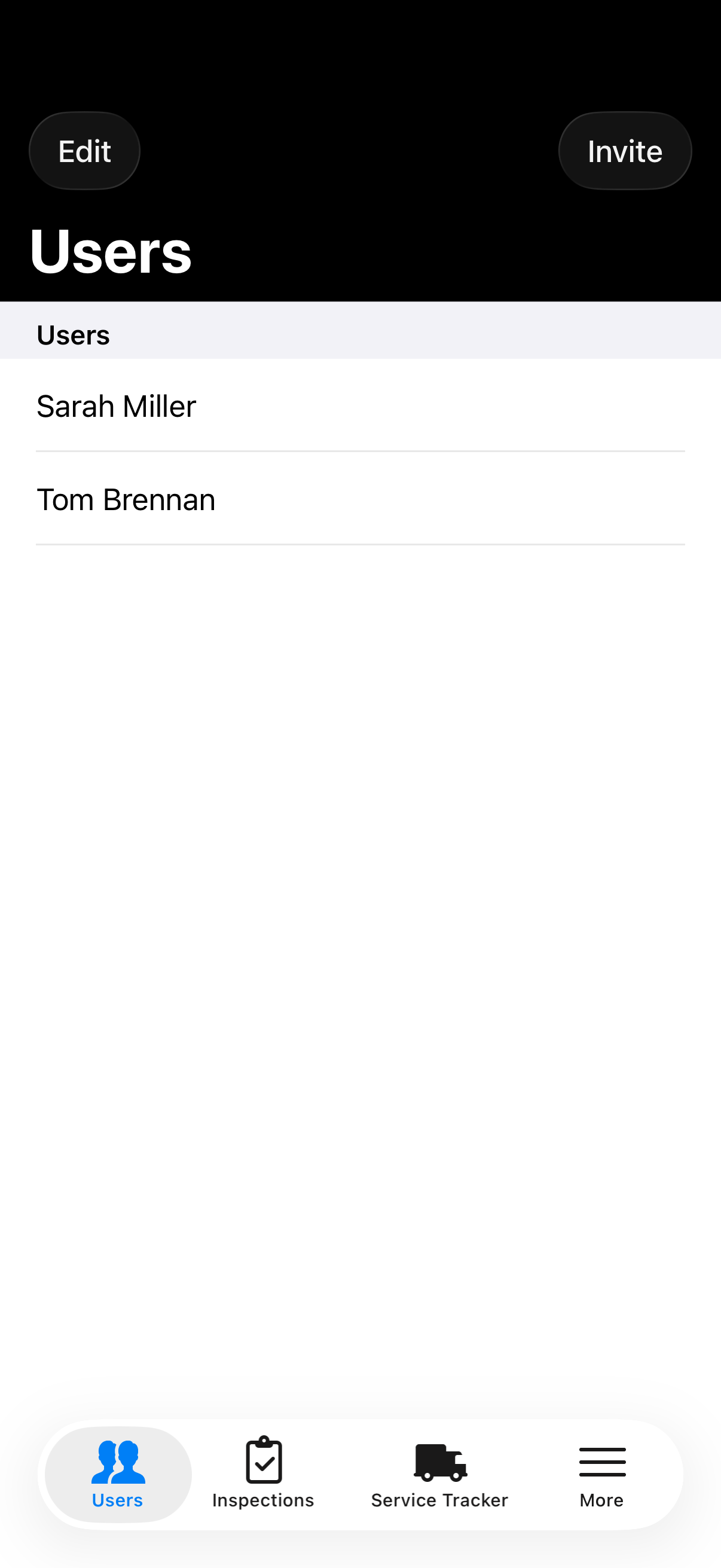
Admins can see company users and manage who has access.
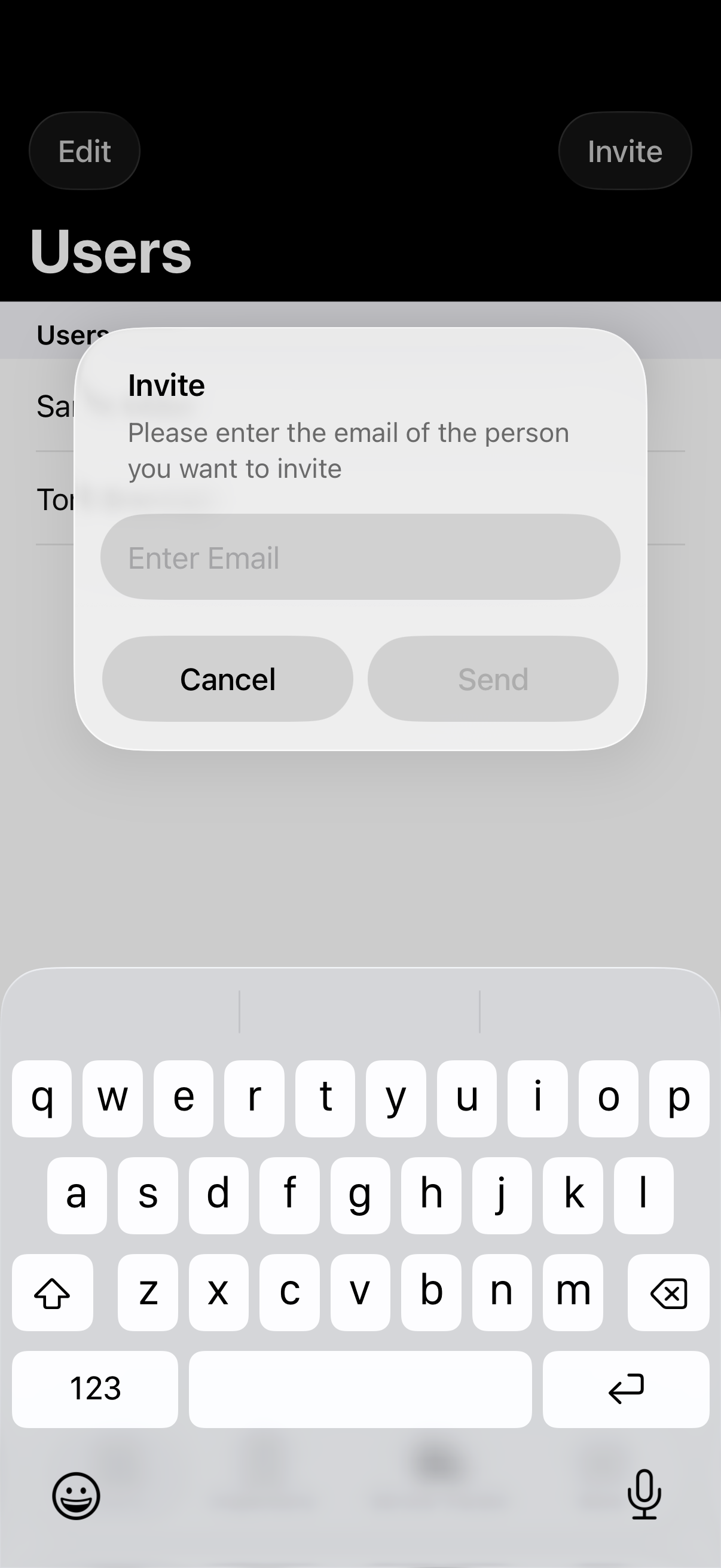
Use Invite to send another person access to the company account.
9. Free and paid plans
The free tier is useful for trying Trakserv with a small number of machines and records. The paid plan unlocks higher limits for the whole company so your full machine list, service history, PDF reporting and defect photos can keep growing.
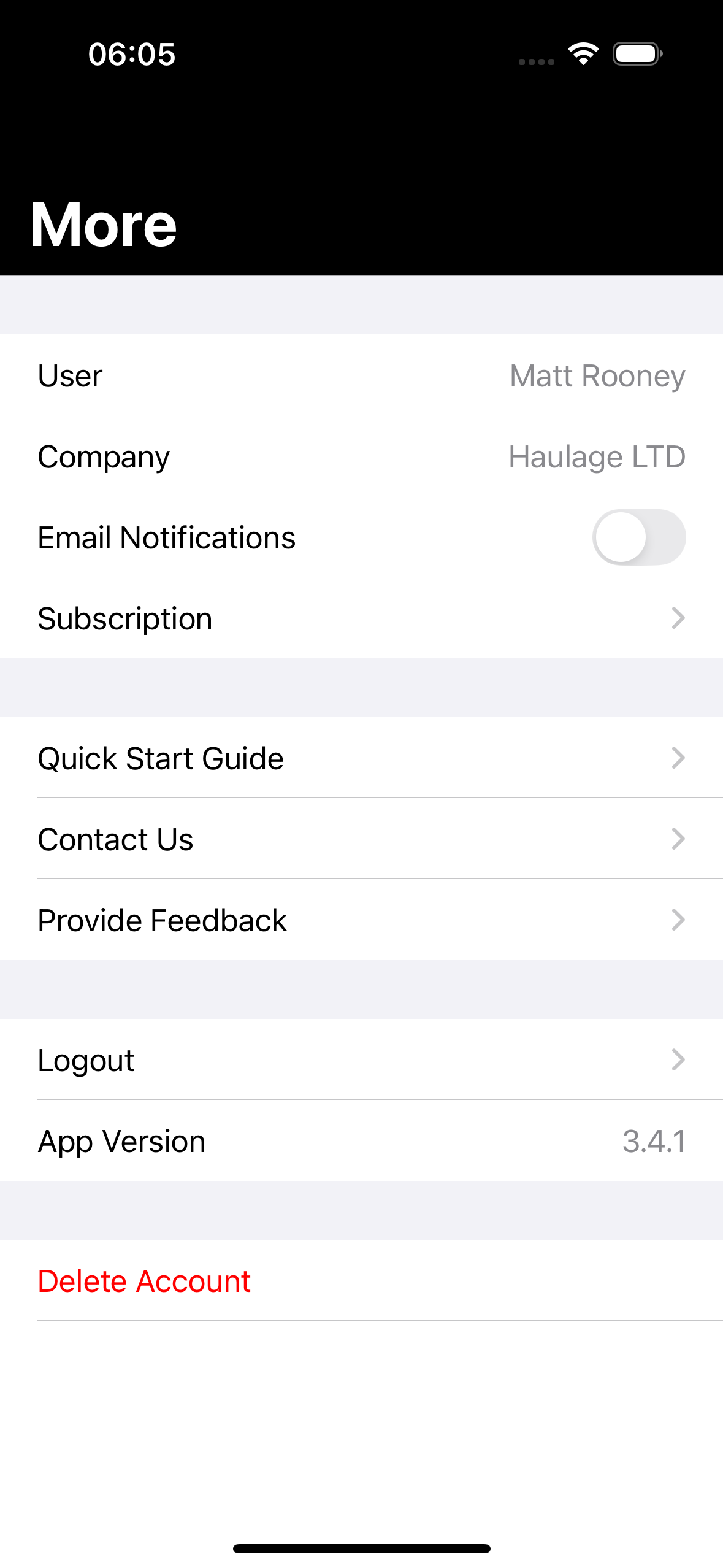
The More screen is where admins can find subscription options, account details, the quick-start guide, contact options and feedback.
Need help?
If something is unclear or you have an idea that would make Trakserv better for your business, email info@trakserv.app.